What’s Changing
Technology Services is adjusting accessibility-related configurations in Microsoft 365 applications to better align with accessibility goals while preserving user control over intelligent features. These changes apply across Windows and, where applicable, to macOS via managed configurations.
The key changes you will see include:
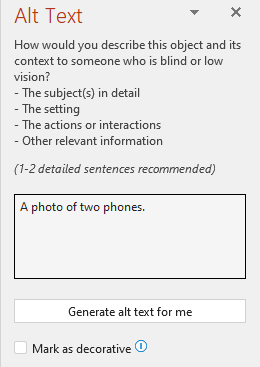
Manual Alt Text Generation Only
Automatic generation of alternative text (alt text) for images has been disabled by default.
• If you insert an image, Office will not generate alt text automatically.
• You can still produce alt text manually by using the Generate alt text for me button in the Alt Text pane.
This approach gives you access to AI-assisted alt text tools when you choose to use them without generating content unexpectedly.
Enhanced Accessibility Visibility
Office apps will now provide clearer, ever-present indicators when accessibility issues are detected in content. Specifically:
• An accessibility status indicator will appear in the application interface (e.g., status bar or icons next to content with issues).
• Clicking the indicator opens details about the issue and ways to address it.
These cues make it easier for you to spot and fix accessibility issues as they work.


Accessibility Checker Prompts
Office will notify users about accessibility issues (such as missing alt text or low contrast text) as they work, helping them proactively address these concerns.
• The built-in Accessibility Checker remains available to review content and provide remediation steps.
• You can also manually run the Accessibility Checker via Review > Check Accessibility.
Where You’ll See These Accessibility Experiences
These updated accessibility configurations apply to specific Microsoft 365 apps. Here’s how they map to the experiences you’ll see when you’re working in Office:
Alt Text Control (On/Off)
This setting affects how and when alternative text (alt text) is offered for images.
• Word – Yes: You will see the Alt Text pane and have the option to use the “Generate alt text for me” button when you choose to add alt text to images.
• PowerPoint – Yes: Similar to Word, the Alt Text pane appears with a manual generate alt text option.
• Other apps – No: This specific alt text control does not apply directly in Excel or Outlook because those apps don’t have the same UI experience for image alt text. (Automatic alt text typically originates from Word and PowerPoint workflows, where imagery is most common.)

Show Accessibility Status in the Status Bar
This is about making accessibility issues visible as you work, without having to open a separate pane:
• Word – Yes: An “Accessibility” indicator appears in the status bar, showing summary information for your document’s accessibility state.
• PowerPoint – Yes: Slides will show similar accessibility status indicators, helping you spot issues early.
• Excel – Yes: Excel also supports showing accessibility status in its status bar when real-time checking is enabled.

Provide Feedback with Sound
This setting controls audio cues from Office — helpful for users who respond to sound notifications:
• Word – Yes: The Provide feedback with sound option is available on the Ease of Access / Accessibility tab under File > Options.
• PowerPoint – Yes: Sound feedback settings propagate into PowerPoint as well.
• Excel – Yes: Excel also supports this user feedback option, with audio cues tied to actions in the app.

Notes on Experience Scope
These accessibility features and their indicators are part of the built-in Accessibility Checker and usability tools in Microsoft 365 apps:
-
The Accessibility Checker itself runs in Word, PowerPoint, and Excel and can help flag missing alt text, contrast issues, and structural accessibility concerns.
-
The Alt Text generation control specifically appears in apps where image captioning is most relevant (Word and PowerPoint).
-
The sound feedback option is handled at the app level and affects all apps that support Office sounds.
Why These Changes Are Being Made
Modern accessibility guidelines (including internal accessibility standards and broader best practices) encourage:
• Clear visibility into accessibility issues as content is created.
• Support for you to understand, act on, and fix issues (not just flag them).
• Your control over optional intelligent services, such as AI-assisted alt text, to balance accessibility benefits with your individual preference and data expectations.
These configurations help ensure content is inclusive while giving you the tools you need when you want them.
How These Work in Practice
When you open a document in Word, Excel, or PowerPoint:
• If accessibility issues are present, an indicator appears showing status (e.g., “Accessibility: Investigate”).
• Clicking the indicator or running the Accessibility Checker shows specific issues and recommended fixes.
• For images, alt text must be added manually by selecting the image and clicking the Generate alt text for me button.
On macOS, similar behaviors are enabled through managed settings delivered via Jamf policies rather than the Office Cloud Policy service.
Best Practices for You
To make your content as inclusive as possible:
• Review accessibility issues early — use the Accessibility Checker regularly.
• Write meaningful alt text that describes what is important about an image, not just what it is.
• Address color contrast and structure issues flagged by the Accessibility Checker.
• Remember that accessibility tools assist everyone — not just those using assistive technologies.
Where to Get Help
If you need assistance understanding or fixing accessibility issues in your content:
• Use the built-in Help features in Office.
• Visit the Accessibility resources linked in the Office Help menu (e.g., “Learn more about accessibility”).
• Contact your internal support team or Help Desk Central for guided assistance.